Back to all Blogs

Exclude objects from Result | Negative Prompts

Gencraft
2 minutes read

Other

Use the “Add Negative Prompt” section to specify exactly what you don’t want in your generations. These negative prompts exclude unwanted elements.

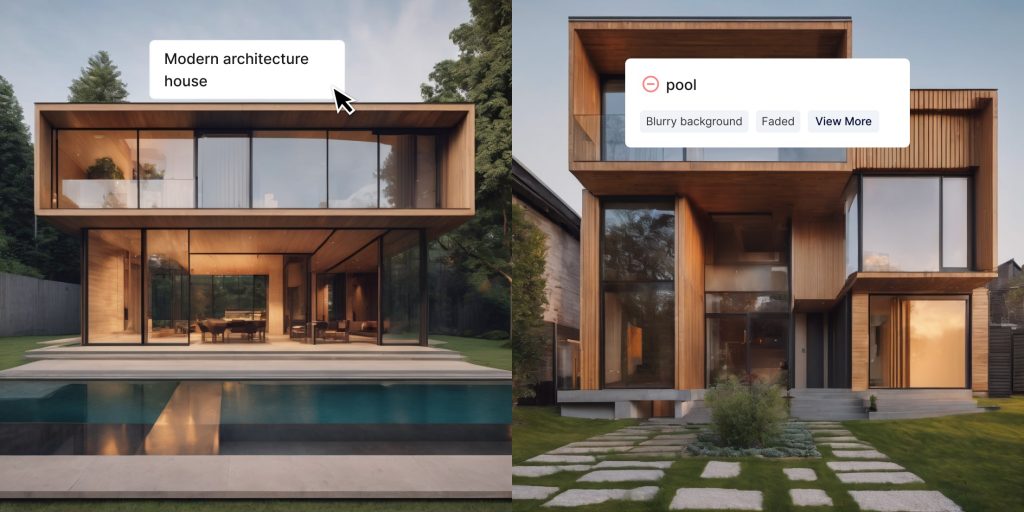
For example, say that you’re using the prompt “Modern architecture house.” The houses you’re generating look pretty good, but a lot of them have pools and you don’t want that to be a part of your image.

The prompt “Modern architecture house” without any negative prompts (left) and with “pool” added as a negative prompt (right).

If you click on “+ Add Negative Prompt” button, you can enter “pool” to encourage the model away from including a pool in your creations. With this configured, this prompt no longer results in houses with pools.

People often use this section to try and counter a lot of the common weaknesses of an AI art generator, such as abnormal hands or duplicated faces. Under the negative prompt text box, there are several suggested negative prompts to help you come up with ones that you may want to use.

Certain negative prompts are more effective than others, simply due to the fact that AI models do not always interpret language the way that people do. For example, you may try to make sure that a generated cat does not look like a dog by including “dog” as a negative prompt. Dog and cat, however, are two very closely related concepts. They are both animals, and they are both popular pets. To a person, the difference between the two is pretty distinct, sometimes to the point of framing them as opposites. But to an AI model? They are almost the same. This can result in a negative prompt being less effective. Just like many aspects of AI art generation, it may take some experimentation to get it right.

We hope this helped you to get started exploring Gencraft and its endless creative possibilities. Check out our other step-by-step guides, and feel free to contact us at support@gencraft.com if you have any questions we didn’t answer.

Back to all Blogs

🎯 Mastering Custom Seeds in Your AI Image Generation

Gencraft
3 minutes read

Other

Take your image creation to the next level by learning how to effectively use Custom Seeds! Using seeds gives you more control over the structure and composition of your generated images, making it easy to experiment with slight variations while keeping key elements intact. This guide will teach you what seeds are, how to use them, and how they can unlock new creative possibilities for your prompts.


What Is a Seed? 🌱

Think of a seed as the starting point or blueprint that guides the AI during image generation. Each time you generate an image, the AI randomly selects a seed behind the scenes. By choosing and reusing custom seeds, you can reproduce the same base composition and structure, allowing for precise edits without starting from scratch.

For example, if you loved the composition of one generated landscape but wanted to change the color of the sky, using the same seed with a slightly different prompt will recreate a similar image with just those specific changes.


Why Use Custom Seeds? 🎨

Using custom seeds offers a range of creative benefits:

  1. Maintain Structure:
    Control the layout of the elements in your image across multiple generations.
  2. Fine-Tune Variations:
    Generate slight variations of the same image by changing only part of your original prompt while keeping the composition consistent.
  3. Experiment with Precision:
    Iterate on a design by generating multiple similar images, each with subtle changes, so you can pick the best version.
  4. Save Time:
    If you’ve already found an image layout you love, using its seed will save time by avoiding the need to search for the right composition again.

How to Use Custom Seeds in Gencraft 🛠️

Note: Custom Seeds are a PRO 👑 only benefit in Gencraft, so upgrade today to start trying this powerful feature!

Seeds Option available in Advanced Settings.
  1. Find the Seed of a Previous Generation
    • After generating an image, look for the seed number displayed under your image/on the Generate Form ( in Advanced Settings tab. )
    • Lock the Custom Seed option to fix your next generations to those seed values.
  2. Start Generating New Prompts With Your Custom Seed
    • While Re-Generating a new prompt, write a slightly modified version of your original prompt to introduce the changes you want.

Example :-

  1. First Prompt:
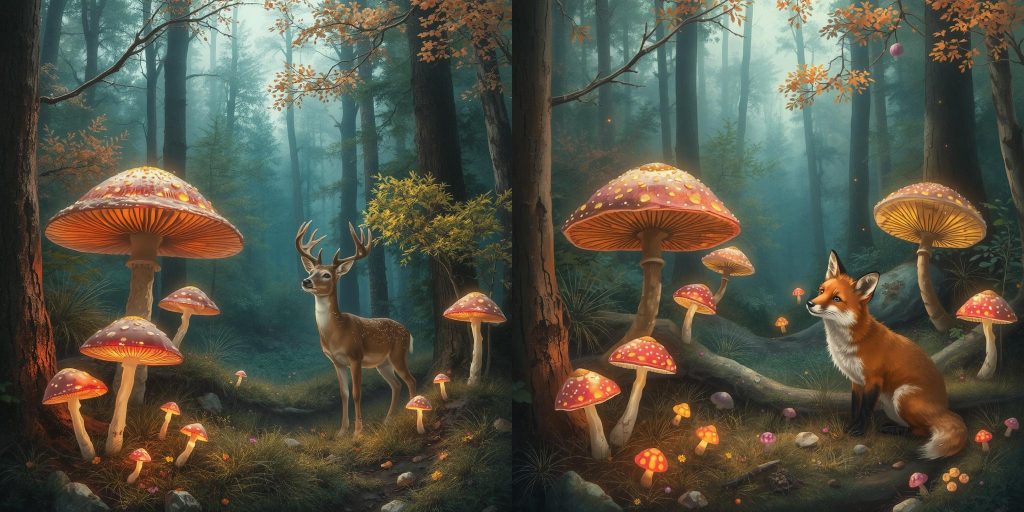
    “A vibrant forest scene with glowing mushrooms and a deer.”
  2. Second Prompt (with the Custom Seed fixed):
    “A vibrant forest scene with glowing mushrooms and a fox.”

By using the same seed, both images will have a similar layout and structure—but the second version will feature a fox instead of a deer.


Handling Two Seeds for Paired Generations ✌️

When generating multiple images in a single batch, Gencraft allows you to input two seeds to control each image independently. Occasionally, you might notice that the images are returned with the order of the seeds swapped.

Don’t worry! Even if the images appear in a different order, the seeds still correspond correctly to the generated results. The key is that the structure and composition dictated by the seeds remain intact, no matter what order they appear in. Just pay attention to which seed corresponds to which final image.


Tips and Tricks for Using Seeds Effectively 🚀

Make Incremental Changes:
Modify only small parts of your prompt to explore creative variations while preserving your original composition.

Document Your Favorite Seeds:
Save the images with seeds that generated your best results. This way, you can revisit or tweak those images in your Collections later.

Use Seeds for Consistent Branding:
If you’re working on a series of visuals with a similar look and feel (e.g., product photos or social media content), reusing the same seed will ensure a cohesive aesthetic.

Avoid Overfitting to One Seed:
Don’t be afraid to try different seeds as well! While using custom seeds offers control, toggling the setting off and using random seeds can unlock exciting surprises.


Start Creating with Custom Seeds Today! 🎉

Now that you understand how custom seeds can unlock new creative potential, it’s time to try it yourself! Whether you’re refining a single prompt or building a series of cohesive images, using seeds gives you the precision and flexibility to perfect your results.

Head over to gencraft.com/generate and start experimenting with your own custom seeds today. We can’t wait to see what you create!

Back to all Blogs

How to write a perfect Prompt for Gencraft

Creating amazing AI images starts with a good prompt. If you’re new to this, don’t worry! This guide will teach you all the essentials — no prior experience required. Think of it like giving clear instructions to a robot: the better you describe your vision, the closer the result will be to what you imagined

Gencraft
3 minutes read

Other

Creating amazing AI images starts with a good prompt. If you’re new to this, don’t worry! This guide will teach you all the essentials — no prior experience required.

Think of it like giving clear instructions to a robot: the better you describe your vision, the closer the result will be to what you imagined.

Why Do Prompts Matter?

The prompt you write tells the AI exactly what to generate. But since the AI doesn’t “think” like a person, the more precise, descriptive, and focused your prompt is, the better your result will be. Experimentation is part of the fun, and even mistakes can lead to happy surprises!

Let’s break it down into simple tips to help you get started.

Tip 1: Start with a Clear and Specific Prompt 🧠

Vague prompts can confuse the model, leading to results that may not match what you’re imagining. Instead of:

  • “A beautiful landscape”

Try:

  • “A serene sunset beach scene with palm trees and gentle waves.”

The second prompt paints a clear picture for the AI, leading to more precise results. Think about the elements you want to include, such as objects, colors, and settings.

Tip 2: Use Descriptive Language for Mood and Style 📝

Add adjectives and adverbs to shape the mood, tone, or visual style you want to achieve. For example:

  • “A whimsical, colorful forest with glowing mushrooms and fairy lights.”
  • “A minimalistic black-and-white portrait of a cat with a mysterious expression.”

Descriptive language helps the AI understand the feeling and vibe you’re going for. The more vivid your descriptions, the closer the AI will get to your creative vision.

The second prompt paints a clear picture for the AI, leading to more precise results. Think about the elements you want to include, such as objects, colors, and settings.

Tip 3: Reference a Character or Artist for Inspiration 👩‍🎨

You can give the AI a reference to a well-known art style, movement, or artist. For example:

  • “A futuristic cityscape inspired by the neon aesthetic of Cyberpunk 2077.”
  • “A swirling, dreamy night sky in the style of Van Gogh’s Starry Night.”

This helps the AI match your vision with an existing aesthetic, guiding it toward the style you want.

Tip 4: Avoid Negations in Prompts ⛔️

The AI can struggle with words like “not” or “without.” Instead of saying:

  • “A huge mansion, no pool”

Try focusing on what you want to see instead. Use our negative prompt feature to explicitly exclude things:

  • “Generate a modern mansion surrounded by a garden”
  • Negative Prompt: “pool

Note: Negative prompts have varying degrees of effectiveness, depending on the Model you have selected. Some Models react very strongly to negative prompts, while others do not, so play around with it and adjust your prompt accordingly.

Tip 5: Experiment With Your Prompt Format 🔬

You can write your prompt as either a sentence or a list—whichever feels more natural to you:

  • Sentence: “A cat sitting on the beach enjoying the sunshine.”
  • List: “Cat, beach, bright sunshine, joyful expression.”

Both formats work, so feel free to experiment and see which one gets you the best results!

Tip 6: Use ((Word Weighting)) for Greater Emphasis 💪

If some parts of your prompt are more important than others, you can assign weights to them by using parentheses. The more parentheses you use, the more emphasis the AI places on those words.

Example Prompt with Weights:

  • “A (((tattoo of a fox))) on an ((ankle)) with a (weird, mystical aura).”

In this prompt:

  • “Tattoo of a fox” is the most important part (3 parentheses).
  • “Ankle” is second in importance (2 parentheses).
  • “Weird, mystical aura” has the least added emphasis (1 parenthesis).

Weights give you more control over what details the AI prioritizes in your final image.

Tip 7: Use the Prompt Enhancer for Extra Detail 🔎

Stuck on what to say? Try our Enhance Prompt tool! This feature adds more descriptive language and applies word weights to your prompt automatically.

Click the “Enhance Prompt” button at the bottom right of the prompt box to get started.

Example:

  • Starting Prompt: “A man standing in front of a castle.”
  • Enhanced Prompt: “A (((man))) standing confidently in a (((plaza outside a medieval castle))), his posture suggesting authority and gravitas, with the (opulent castle walls and turrets looming in the background).”