Back to all Blogs

Training Your Own Custom Models

Train your own model on Gencraft and unlock your creative potential!

Gencraft
3 minutes read

Models

Train your own model on Gencraft and unlock your creative potential! Create unique models by uploading images in a consistent style, and apply that style to your generations.

Note: This feature is available to Pro users only, and requires an additional payment per model training.

Say goodbye to pre-defined styles and let your unique vision take center stage with Gencraft’s Create Model feature. Want to generate images in a style that we don’t offer among our pre-built Styles or Models? Or maybe you want to generate images of a specific person that isn’t well-known enough to be recognized by the model? With this feature, you can build it yourself. Just upload a few photos, caption them, and then let us do the rest of the work.

Example Model

To get started, go to “My Library” on the top menu bar and select “My Models.” You’ll see a “Sample Model” that creates balloon animals. If you click on this model, you can view examples of uploaded images and their captions. You can also click “Use model” to try it out for yourself.
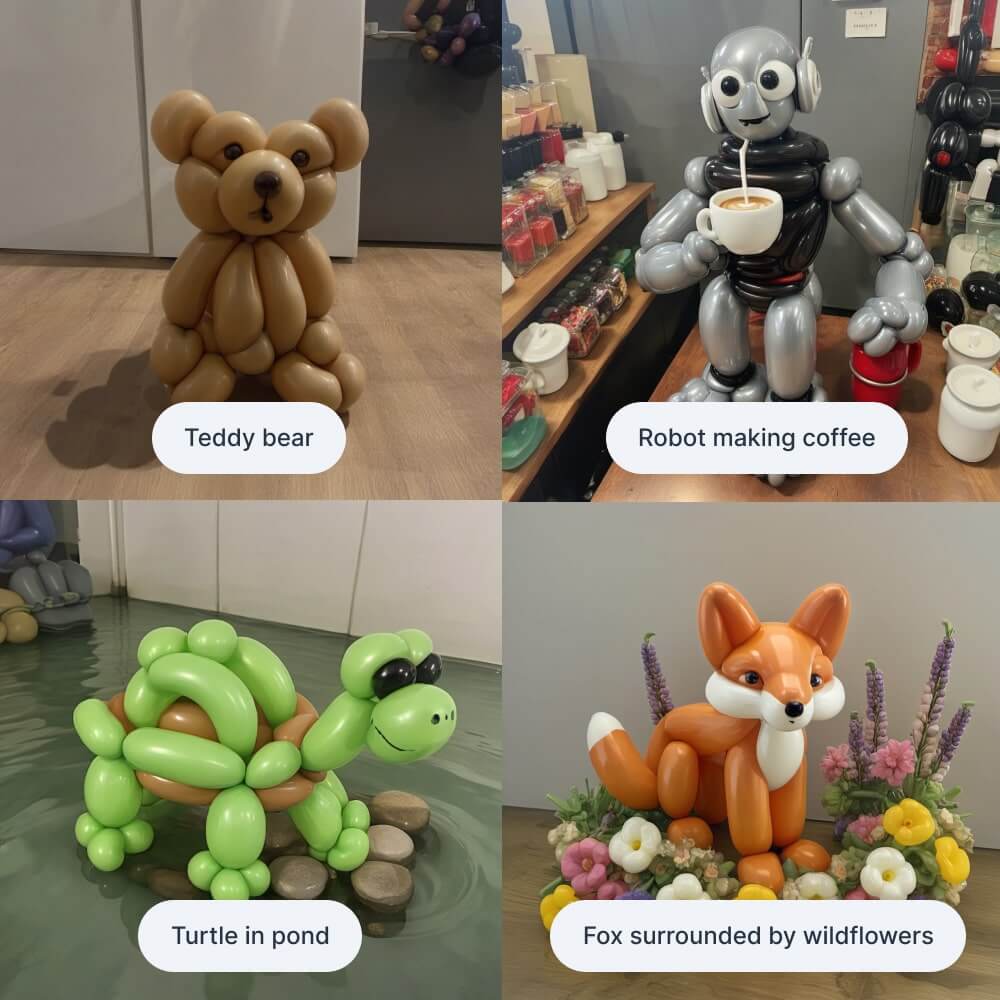
Four examples using a custom-made ballon model.

Step 1: Uploading Images

Select the “Create model” button to begin building your model. You’ll then be prompted to enter a name for your model. Next, you will upload the images that will be used to train your model. You can upload between 5 to 200 images, but we recommend at least 10 for optimal model quality.

Step 2: Captioning Image

After uploading your images, you will be prompted to enter captions for each of them. Make sure your captions are as long and detailed as possible for best results. These captions are crucial, as they are how your model will learn to replicate the styles and subjects in your images. It is also very important to be consistent in how you describe the style or subject of these images — for example if you’re uploading images of a person, call them by the same exact name in each of your captions.
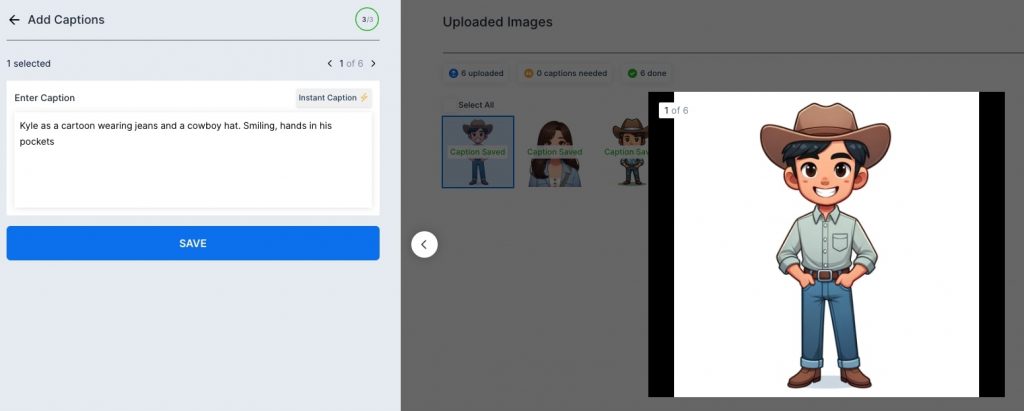
A sample caption: “Kyle is a cartoon wearing jeans and a cowboy hat. Smiling, hands in his pockets”

Notice how detailed our caption is in the example above. The caption references “Kyle,” which trains the model to recognize this character and style. The more diverse the training images, the better the model will identify and reference Kyle in future creations.

We provide an “Instant Caption” feature as a starting point for your captions, but these captions are often short and don’t include much detail. We recommend editing them to include more descriptive language and specific names of objects and people.
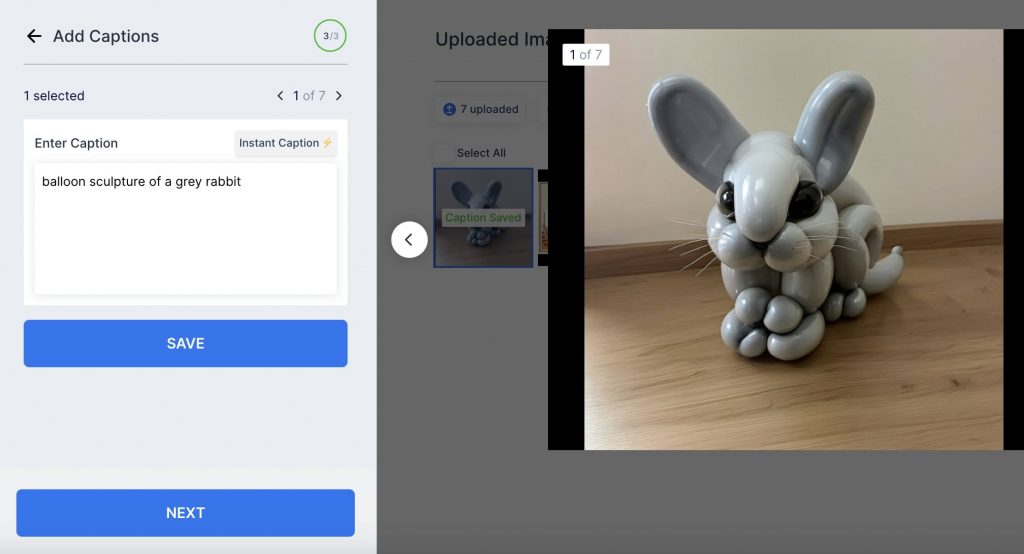
An Instant Caption for an image of a rabbit made out of balloons: “Balloon sculpture of a grey rabbit.”

Step 3: Training Your Model

After you’ve captioned all of your images, you’re ready to start training your model! Model training requires a fee, and you will be prompted with a check out step before initiating training.

The model training process will take up to 30 minutes. After training is complete, you can find your model under the “My Models” section of your library. Simply click on it and then select “Use model” to begin generating with it.

That brings us to the end of our tutorial! We hope this helped you to get started exploring Gencraft and its endless creative possibilities. Check out our other step-by-step guides, and feel free to contact us at support@gencraft.com if you have any questions we didn’t answer.
Back to all Blogs

Choosing the right model

Choose the best Gencraft model to generate precisely what you want.

Gencraft
4 minutes read

Models

Once you have your your prompt ready, choose the best Gencraft model to generate precisely what you want. We offer a wide range of models for different needs.

The Default model is trained to perform well on virtually all kinds of prompts. For those who wish to elevate their creativity by experimenting with different models, we’ve provided many others — each with different specialties. We’ll outline here what those specialities are with some examples to illustrate their differences.

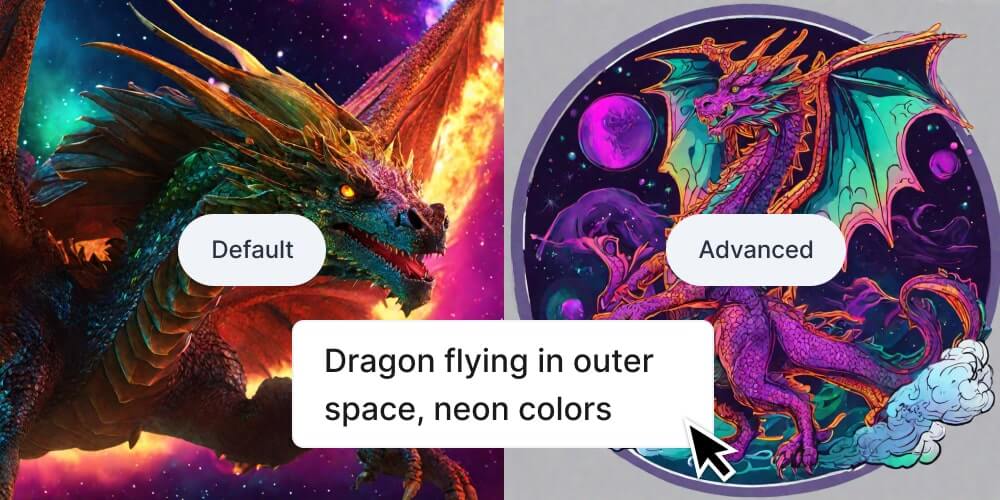
An example prompt shown as rendered by both Default and Advanced models.

Image 2.0 – Default

Gencraft’s Default model is our bread and butter. Give it any length of prompt and it will give you a stunning result. Most images that come out of this model will be realistic (like a photograph) as opposed to more artistic representations. That’s where our Advanced model comes in.

Image 2.0 – Advanced

We added the Advanced model as an option intended for more experienced users — unlike the Default model, the more descriptive the prompt, the better the result. There is also more variance in the results of the Advanced model, whereas the Default model produces similar results if the same prompt is used repeatedly. This model can do everything from realistic images to abstract art.

When to Use Default vs Advanced Models

In short, our Default model performs well with all lengths of prompts, whereas our Advanced model performs better with long, detailed prompts. The Default model also usually creates photo-like images, so if you want something more artistic like anime, oil painting, or ink you may be better off with our Advanced model.Use the default model if :

Use the default Model if :-

  • You’re using a short prompt.
  • You want to create a photo like image.

Use Advanced Model if :-

  • You want more variance in your results.
  • You’re using a long prompt.
  • You want your result to anime, painting or another art style.

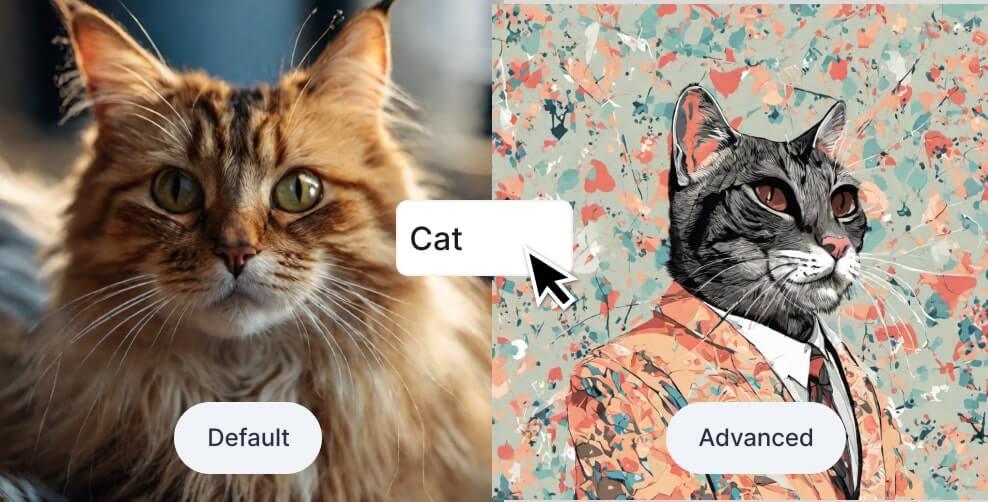
To illustrate the difference between models, let’s take a look at the result of each model when using a very short prompt, like the word “cat.”

The prompt “cat” from both models

On the left we have the result from the Default model, which is a pretty generic image of a cat. The Advanced model, however, generated something very different — more artistic, and a little more abstract.

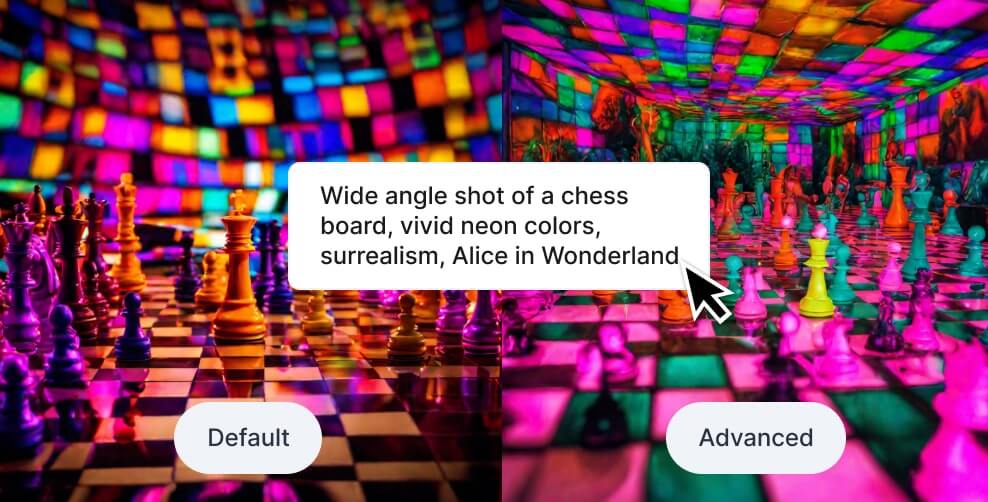
When you enter longer prompts, the results from the two models are a lot more similar. See below, where we used the prompt “Wide angle shot of a chess board, vivid neon colors, surrealism, Alice in Wonderland.”

The prompt “Wide angle shot of a chess board, vivid neon colors, surrealism, Alice in Wonderland” from both models

Hyper-Realism

If you want hyper-realistic images, you can also choose our Hyper-Realism model. Unlike our Image 2.0 models, this model is trained specifically to create only images that resemble high-resolution photographs. This model will always be free to use for all users, regardless of subscription status.

Four different examples from Hyper-Realism.

Other Models: Cute Animals, Coloring Book, and More

We also offer a variety of other models to Pro users that are specifically trained for particular image styles. These currently include: Amazing Details, Cute Animals, Insta 2.0, Insta Natural, Insta Realistic, Long Exposure, Holiday Sweaters, Clay Art, 2D Art, Realistic Details, Logos, Textify, Enchanting Glow, 3D Character, Fire and Ice, Roses, Paint Splash, Stickers, ColorBook, and Paper Art.

If you’d like to utilize some of these specialized models but you’re not a Pro user, don’t worry! We make a few of them available to users on the Free Plan, rotating which ones are free every few weeks. So if the one you have your eye on isn’t currently available, please check back later — you might be in luck!

We are planning to release dozens more models like these in the near future. If you’d like to request a certain style, please let us know at support@gencraft.com or let us know on Discord.

Final Thoughts

Gencraft offers many different models to choose from when generating an image. Each of these models has certain specialities to keep in mind as you explore the creative possibilities they allow.

If you don’t see a model that quite fits the style you’re envisioning, see our guide to making your own custom model — in just a few easy steps you can build something that is exactly tailored to your own creative vision.

We hope this helped you to get started exploring Gencraft and its endless creative possibilities. Check out our other step-by-step guides, and feel free to contact us at support@gencraft.com if you have any questions we didn’t answer.