Back to all Blogs

Introducing Generation Presets!

Save and instantly reload your favorite generation settings with Presets - no more reconfiguring from scratch! Also, level up your creations with all new prompt prefixes and suffixes! Presets are now available for Pro users on the browser app - coming soon to iOS and Android!

Gencraft
4 minutes read

Feature

Generation Presets are now available for Pro users! Presets let you save and load your favorite generation settings, so you can spend less time reconfiguring settings and more time creating.

We’re also introducing new, preset-only fields to help take your prompt-crafting to the next level: prompt prefixes and suffixes! Prefixes and suffixes allow you to save text to be automatically added to the start and end of your prompts, respectively. Prefixes and suffixes are available for both positive and negative prompts!

This blog post will dive into Presets – what they are, how they work, and how best to use them!

What are Presets?

Generation Presets are a new feature that enable Pro users to save and load their generation settings. Presets were created to streamline the creation process for creators who have different combinations of generation settings they like to switch between.

Presets encapsulate the following generation settings: Model, Style, Aspect Ratio, Seed, Positive Prompt Prefix, Positive Prompt Suffix, Negative Prompt Prefix, and Negative Prompt Suffix.

Presets are feature-specific. For example, presets created for PromptCraft are not applicable to PhotoBooth, and vice cersa. Pro users can save up to 10 different presets across all features.

What are the Prefix and Suffix Fields?

The new prefix and suffix fields are ideal for users who find themselves typing the same set of words at the start and end of every prompt. A prefix is text that gets automatically added to the beginning of your prompt. A suffix is text added to the end. Together, they wrap your prompt like a template:

[prefix] prompt [suffix]

Prefixes and suffixes can be saved for both positive and negative prompts (for models that support negative prompts).

Example:

I create a preset with the following prefix/ suffix fields:

  • Positive prompt prefix: “Cinematic photograph, shot on 35mm film,”
  • Positive prompt suffix: “, natural lighting, high detail”

Then, the preset is applied on the following positive prompt: “a weathered fisherman on a dock at golden hour”.

The final prompt used for generation becomes the following:
“Cinematic photograph, shot on 35mm film, a weathered fisherman on a dock at golden hour, natural lighting, high detail”

The same prefix and suffix are applied to future prompts while the preset remains active.

How do Presets Work?

From the Generate Screen:

Presets are accessible through the Generate settings panel:
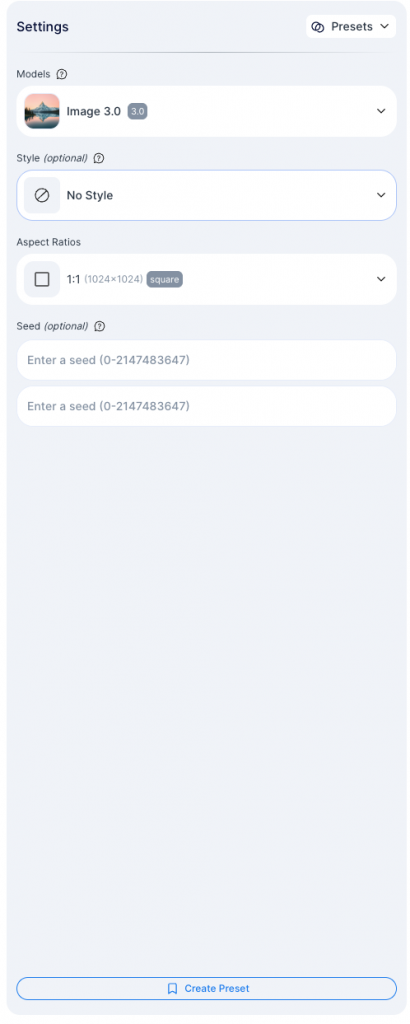
The ‘Create Preset’ button on the bottom of the settings panel will start the process for creating a new preset from the current generation settings.

The Presets dropdown in the top right will open the Preset selection panel, through which presets can be applied or edited.

From the Results Screen:

After generating with a preset, the preset will remain applied on the results screen for subsequent generations, unless another generation is applied or generation settings are reset to default. Accessing previous results generated with a preset will also ensure that generating additional iterations have the same prefix / suffix fields applied, even if the applied preset at the time has since been changed.

In all these cases, the preset name will be cleared from the dropdown in the top right, but the settings will persist.

Example:

I create a preset called “Natural Cinema” with the following prefix/ suffix fields:

  • Positive prompt prefix: “Cinematic photograph, shot on 35mm film,”
  • Positive prompt suffix: “, natural lighting, high detail”

I click generate, and the preset is applied on the following prompt: “a weathered fisherman on a dock at golden hour”.

On the results screen’s generation settings panel, “Natural Cinema” is no longer explicitly shown in the top right, but the prefix / suffix are still active and are applied to future generations.

Later, if I access this creation from My Library, the same prefix and suffix are applied to the generations created from the result screen of this creation.

Using Presets

Here are some tips on how best to use presets to improve your prompts:

  • Use presets to reflect your favorite aesthetics: presets are able to encapsulate entire aesthetics or vibes, including different composition types and styles.
  • Coordinate across your preset fields: each preset field can have a major impact on the generation result. Complimentary settings produce cohesive results, while conflicting settings create unpredictability.
  • Keep it simple and focused: overstuffing a single prefix with too many ideas reduces the chance that the result will match what you’re looking for. More doesn’t always mean better.
  • Experiment and iterate: Presets are easy to create and easy to edit, so start small! Start with a model and a prefix, and then add additional settings to bring your results closer to your desired vision.
  • Prefixes: Use prefixes to influence the style and medium of your creations.
  • Suffixes: Use suffixes to influence the quality and technical finishing of your creations.

We’re excited to launch Presets as a powerful new generation tool, and even more excited to see what you all create! Give presets a try and let us know what you think!

Best,

The Gencraft Team

Back to all Blogs

Introducing Contests!

Cybernetic Wilds, our inaugural contest, is now live and accepting submissions! Head over to the contest page to submit your creation and have a change at earning contest-specific rewards!

Gencraft
1 minute read

Feature

Cybernetic Wilds, our inaugural contest, is now live and accepting submissions! Flex your creativity, prompt-writing skills, and custom models to win special rewards and XP in new themed contests! Head over to the contest page to submit your creation and have a change at earning contest-specific rewards!

Cybernetic Wilds:

Share your interpretation of a natural environment influenced by technology. Tell a story of mutual symbiosis creating a flourishing landscape, or a tale of conflict and decay. Be creative and explore different styles, elements, or interpretations!

To learn more about contests and potential rewards, check out the previous blog post.

Back to all Blogs

Contests – Coming Soon!

Flex your creativity, prompt-writing skills, and custom models to win special rewards and XP in new themed contests! The very first contest, Cybernetic Wilds, will start on Thursday, March 26 @ 11 PM UTC! Learn more about contests on our blog!

Gencraft
3 minutes read

Feature

Introducing Contests

Flex your creativity, prompt-writing skills, and custom models to win special rewards and XP in new themed contests!

Contests are community competitions in which everyone can submit creations that meet the contest criteria and vote on others’ creations to ultimately crown the winners. Contests will run regularly and feature a unique theme or restriction.

The inaugural contest will start on Thursday, March 26 @ 11 PM UTC, and submissions will be open until Monday, March 30 @ 11 PM UTC. Keep reading to learn about how contests work as well as potential rewards!

How do Contests Work?

All users are able to participate in contests. Contests consist of three main phases: submission, voting, and results.

Contests start with the submission phase, in which users are able to submit eligible creations to the contest. Submissions must adhere to the contest guidelines (see full details at the bottom of the blog post) and fit the contest theme. Free users can submit one creation per contest. Pro and Starter users can submit two creations per contest. Take the time to experiment with different prompts, models, styles, and features – change or delete submitted creations anytime until the submission phase ends.

Once submissions are locked, voting begins. During this time, users will receive a certain amount of daily votes and participate in batch-style voting on other users’ submissions. Voting takes place over multiple days, and the vote quota refreshes daily.

The voting period is followed by a waiting period during which the team will review the winning submissions and assign the Editor’s Choice award to one noteworthy submission. Then, results are announced for everyone to see – users will be able to see the winning submissions, as well as the placement results for their submissions.

Past contest results will be available to view as well from the second contest onwards.

Contest Rewards

Earn XP for participating in the contest, and earn special cosmetic rewards for placing in the top 25!

Earn XP for submitting creations, participating in voting, and hitting daily quota limits. Also earn XP for top placements (the higher the placement, the more the XP).

Earn contest badges for placing in the top 25.

Earn contest crowns, a new cosmetic that features on your profile, for placing in the top 3 or winning the Editor’s Choice award.

First Contest

The first contest will take start on Thursday, March 26 @ 11 PM UTC and officially end on Friday, April 3 @ 11 PM UTC. The phases will occur during the following times:

  • Submission Phase: 3/26 Thursday, 11 PM UTC – 3/30 Monday, 11 PM UTC
  • Voting Phase: 3/31 Tuesday, 1 AM UTC – 4/2 Thursday, 1 AM UTC
  • Results Announced: 4/2 Thursday, 11 PM UTC

The theme for the first contest is Cybernetic Wilds. Magic Edit and FaceSwap will not be allowed for this contest. Besides that, there are no model, style, prompt, or feature restrictions!

We’re excited to see what everyone creates!

Additional Info & Guidelines:

Submissions:

  • Free users can submit one creation per contest. Pro and Starter users can submit two creations per contest.
  • Only creations generated on Gencraft are eligible for submission. Attempts to bypass this (e.g. using a creation generated from an external source) will be disqualified.
  • At least 1 valid submission is required to participate in the contest.
  • Submissions do not have to be published.
  • Submissions must follow contest-specific themes.
  • Submissions must adhere to Gencraft’s Content Policy, follow the weekly theme, and use any required features (e.g., FaceSwap, PhotoBooth).

Voting:

  • Your submission(s) will be excluded from the voting batches.
  • Once your votes are cast, submit your vote. You can not edit your votes after submission.
  • Creators are kept anonymous to ensure fair voting.