Back to all Blogs

A New Look for Gencraft on Mobile

We’re excited to announce the launch of our redesigned generate experience on our mobile apps! This redesign also has the goal of making generating content smoother and more intuitive, while also making it easier to view and remix results. Check out the full blog post for all the details. Explore the redesigned app and let us know what you think via Discord or the in-app feedback form!

Gencraft
2 minutes read

Design Update

Hi Everyone,

We’ve just launched our mobile redesign! A couple of months ago, we went live with our web redesign – you can read about it in our last blog post. This time around we’ll be diving into what’s changed with our mobile app, as well as our motivations.

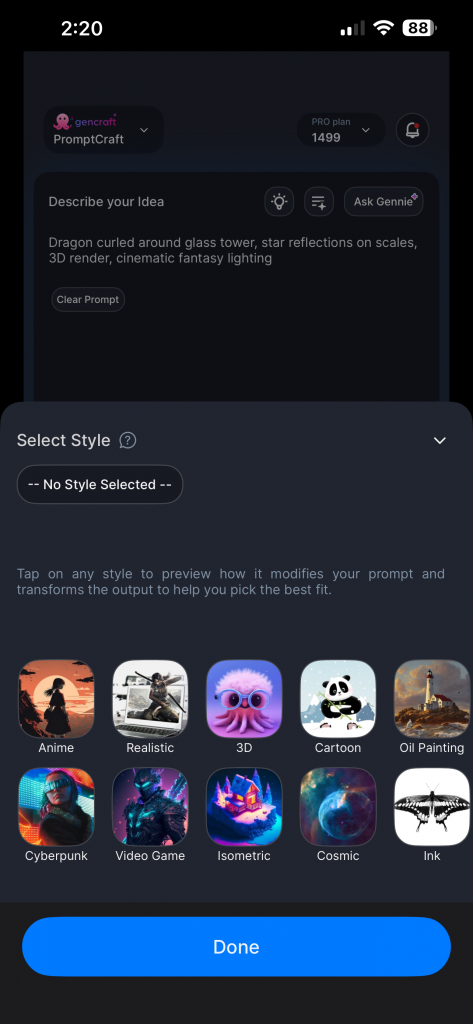
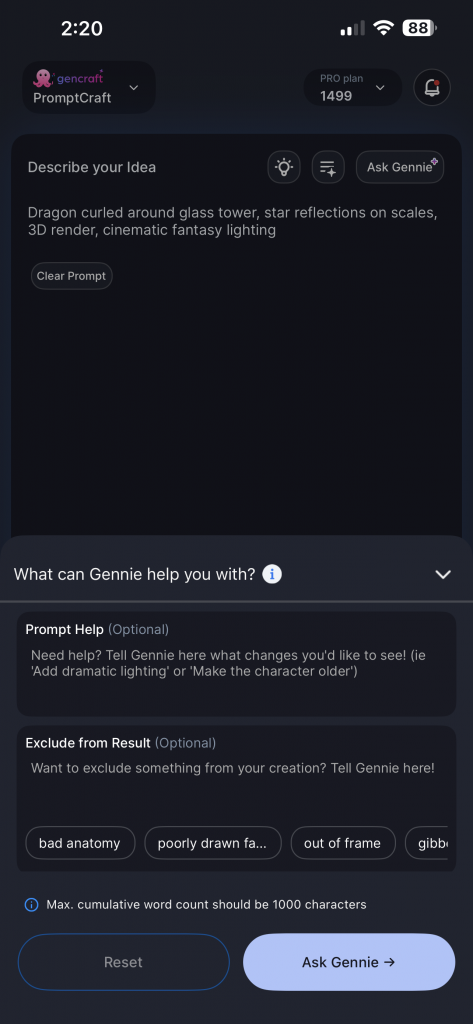
Similar to the web redesign, this redesign primarily targets the end-to-end generate experience, from writing prompts and selecting generation settings to viewing your creations. We wanted to ensure you all were receiving a better, more intuitive generation experience for our users while maintaining all existing features and functionality.

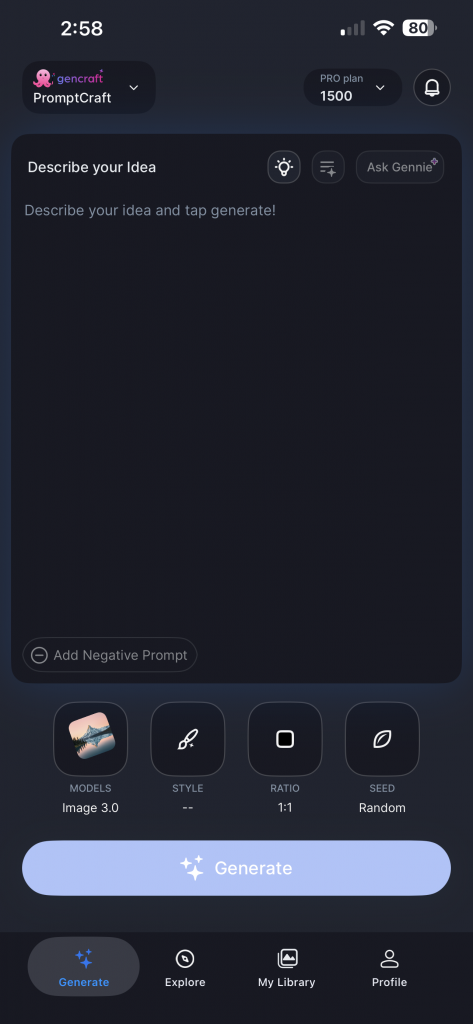
The new generate screen presents a simplified UI that emphasizes the prompt input, which is the most important element for creation. Optional inputs, like reference images, are hidden unless required for the selected feature. We want users to be able to generate quickly without extraneous UI elements.

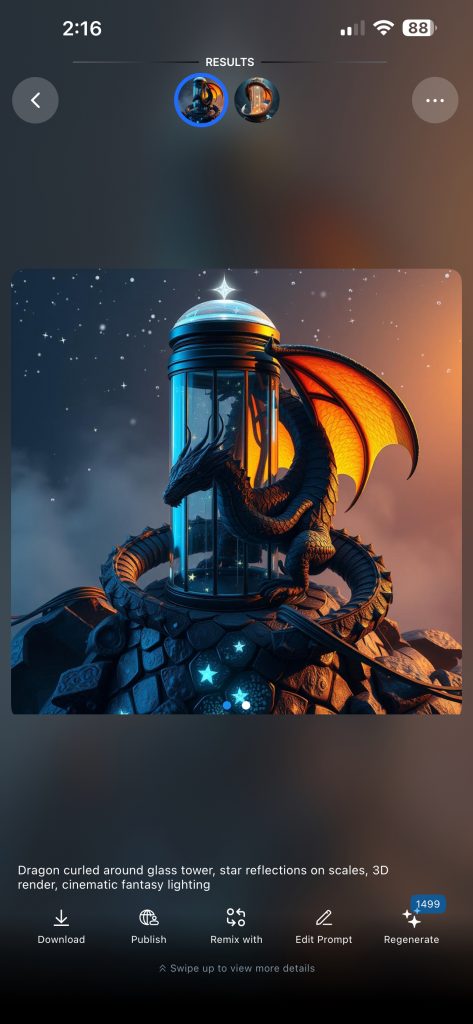
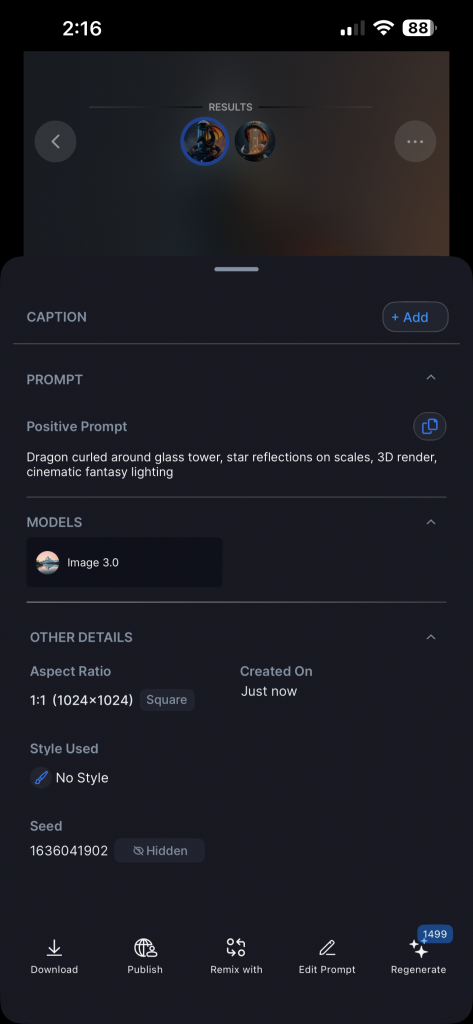
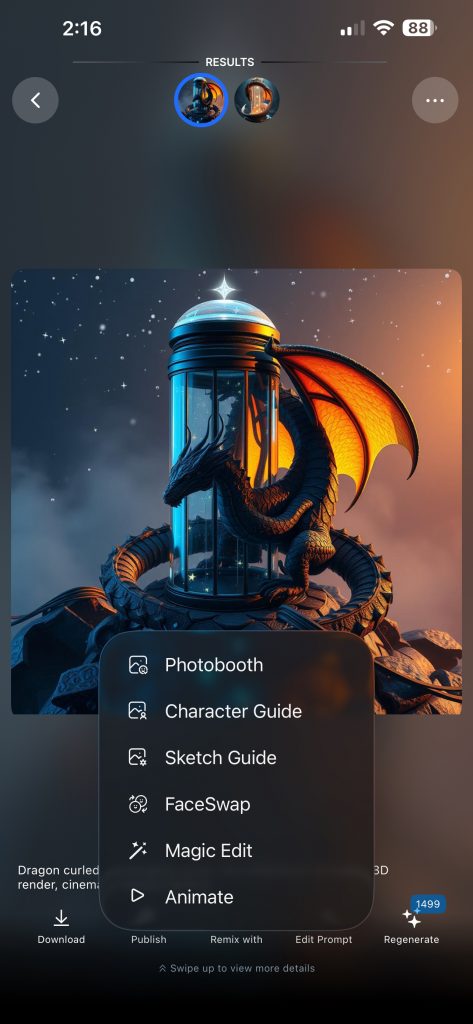
The new creation results screen brings more focus to the actual creation, which is now larger and more prominent. Swipe left and right to navigate between both creations, and swipe up to view the full details for the creations. Key actions like remixing, publishing and downloading are still one tap away, but are now consistently organized in the UI.

Overall, the new redesign will help Gencraft feel more modern and intuitive to new and old users alike. Please give the redesign a try and let us know any feedback!

Thanks for reading, and keep on creating!

Happy New Year,

The Gencraft Team

Back to all Blogs

How to write a perfect Prompt for Gencraft

Creating amazing AI images starts with a good prompt. If you’re new to this, don’t worry! This guide will teach you all the essentials — no prior experience required. Think of it like giving clear instructions to a robot: the better you describe your vision, the closer the result will be to what you imagined

Gencraft
3 minutes read

Other

Creating amazing AI images starts with a good prompt. If you’re new to this, don’t worry! This guide will teach you all the essentials — no prior experience required.

Think of it like giving clear instructions to a robot: the better you describe your vision, the closer the result will be to what you imagined.

Why Do Prompts Matter?

The prompt you write tells the AI exactly what to generate. But since the AI doesn’t “think” like a person, the more precise, descriptive, and focused your prompt is, the better your result will be. Experimentation is part of the fun, and even mistakes can lead to happy surprises!

Let’s break it down into simple tips to help you get started.

Tip 1: Start with a Clear and Specific Prompt 🧠

Vague prompts can confuse the model, leading to results that may not match what you’re imagining. Instead of:

  • “A beautiful landscape”

Try:

  • “A serene sunset beach scene with palm trees and gentle waves.”

The second prompt paints a clear picture for the AI, leading to more precise results. Think about the elements you want to include, such as objects, colors, and settings.

Tip 2: Use Descriptive Language for Mood and Style 📝

Add adjectives and adverbs to shape the mood, tone, or visual style you want to achieve. For example:

  • “A whimsical, colorful forest with glowing mushrooms and fairy lights.”
  • “A minimalistic black-and-white portrait of a cat with a mysterious expression.”

Descriptive language helps the AI understand the feeling and vibe you’re going for. The more vivid your descriptions, the closer the AI will get to your creative vision.

The second prompt paints a clear picture for the AI, leading to more precise results. Think about the elements you want to include, such as objects, colors, and settings.

Tip 3: Reference a Character or Artist for Inspiration 👩‍🎨

You can give the AI a reference to a well-known art style, movement, or artist. For example:

  • “A futuristic cityscape inspired by the neon aesthetic of Cyberpunk 2077.”
  • “A swirling, dreamy night sky in the style of Van Gogh’s Starry Night.”

This helps the AI match your vision with an existing aesthetic, guiding it toward the style you want.

Tip 4: Avoid Negations in Prompts ⛔️

The AI can struggle with words like “not” or “without.” Instead of saying:

  • “A huge mansion, no pool”

Try focusing on what you want to see instead. Use our negative prompt feature to explicitly exclude things:

  • “Generate a modern mansion surrounded by a garden”
  • Negative Prompt: “pool

Note: Negative prompts have varying degrees of effectiveness, depending on the Model you have selected. Some Models react very strongly to negative prompts, while others do not, so play around with it and adjust your prompt accordingly.

Tip 5: Experiment With Your Prompt Format 🔬

You can write your prompt as either a sentence or a list—whichever feels more natural to you:

  • Sentence: “A cat sitting on the beach enjoying the sunshine.”
  • List: “Cat, beach, bright sunshine, joyful expression.”

Both formats work, so feel free to experiment and see which one gets you the best results!

Tip 6: Use ((Word Weighting)) for Greater Emphasis 💪

If some parts of your prompt are more important than others, you can assign weights to them by using parentheses. The more parentheses you use, the more emphasis the AI places on those words.

Example Prompt with Weights:

  • “A (((tattoo of a fox))) on an ((ankle)) with a (weird, mystical aura).”

In this prompt:

  • “Tattoo of a fox” is the most important part (3 parentheses).
  • “Ankle” is second in importance (2 parentheses).
  • “Weird, mystical aura” has the least added emphasis (1 parenthesis).

Weights give you more control over what details the AI prioritizes in your final image.

Tip 7: Use the Prompt Enhancer for Extra Detail 🔎

Stuck on what to say? Try our Enhance Prompt tool! This feature adds more descriptive language and applies word weights to your prompt automatically.

Click the “Enhance Prompt” button at the bottom right of the prompt box to get started.

Example:

  • Starting Prompt: “A man standing in front of a castle.”
  • Enhanced Prompt: “A (((man))) standing confidently in a (((plaza outside a medieval castle))), his posture suggesting authority and gravitas, with the (opulent castle walls and turrets looming in the background).”
Back to all Blogs

A New Look for Gencraft on Web

We’re excited to officially announce the launch of our redesigned generate experience for WEB! This redesign was built from the ground up to make generating content smoother and more intuitive, while also making it easier to view and remix results. Check out the full blog post for all the details. Explore the redesigned app and let us know what you think via Discord or the in-app feedback form. And be on the lookout for some exciting announcements coming up!

Gencraft
2 minutes read

Design Update

We’re bringing the blog back! In this post, we’ll dive deeper into what’s new with the latest updates on Web, share some insight into the motivation behind the changes, and cover any other relevant updates.

First, the largest and most visually noticeable change with this update – the redesigned generation flow. This was a large undertaking by the development team that began with redesigning the generation flow from the ground up. We wanted to address a few key areas with the redesign: consistent UX, making it easier to iterate on an idea via re-generating, and showing community creations directly on the generate screen.

The redesigned generate screen

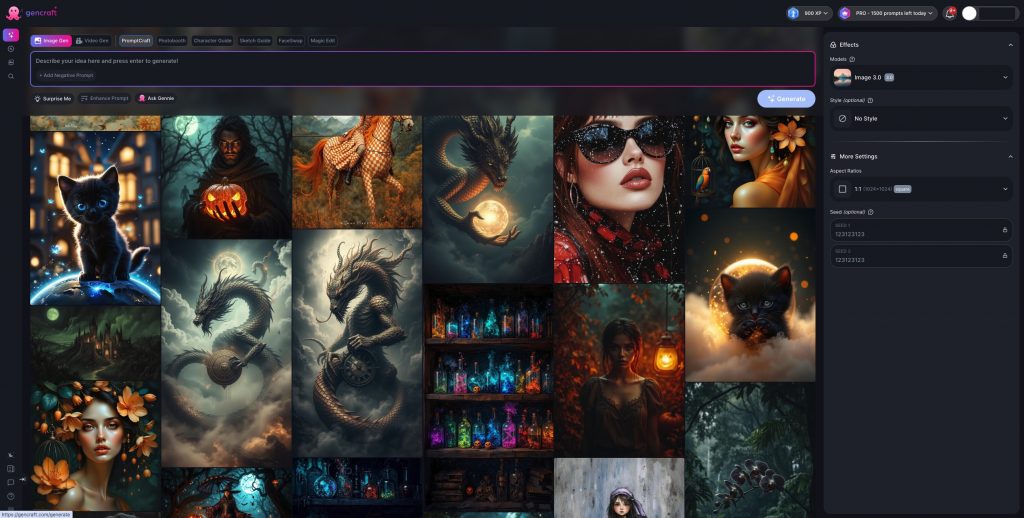
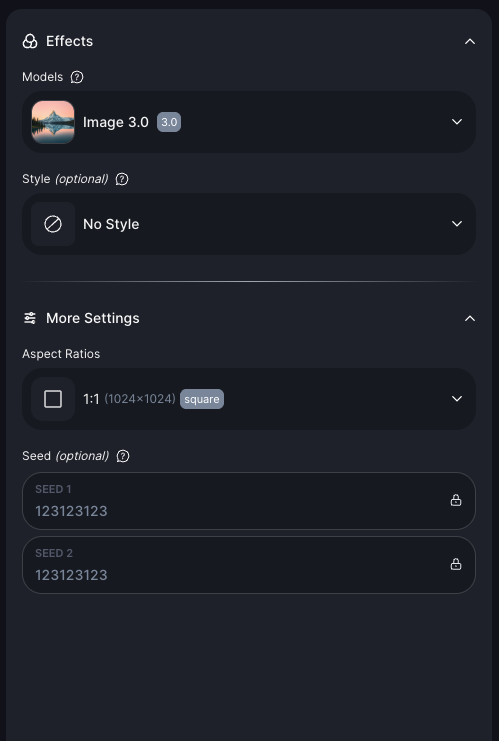
The new generation screen has all the various generation settings and configurations (model, style, aspect ratio, etc.) in one place: the right panel. Model and style selection have consistent UX as well. Features like Photobooth, Magic Edit, and Animate are now much easier to access and switch between.

Right-side panel containing all the generation settings

Another notable change is the introduction of the explore feed on the Generate page. Users can browse others’ creations directly on the Generate page and switch between filters like Most Liked, Trending, Newest, etc. With this, users can more easily draw inspiration from others’ work without needing to switch to the explore page, as well as find interesting creations to remix. The Explore page is unchanged, so feel free to browse there as well!

Browse community creations while generating!

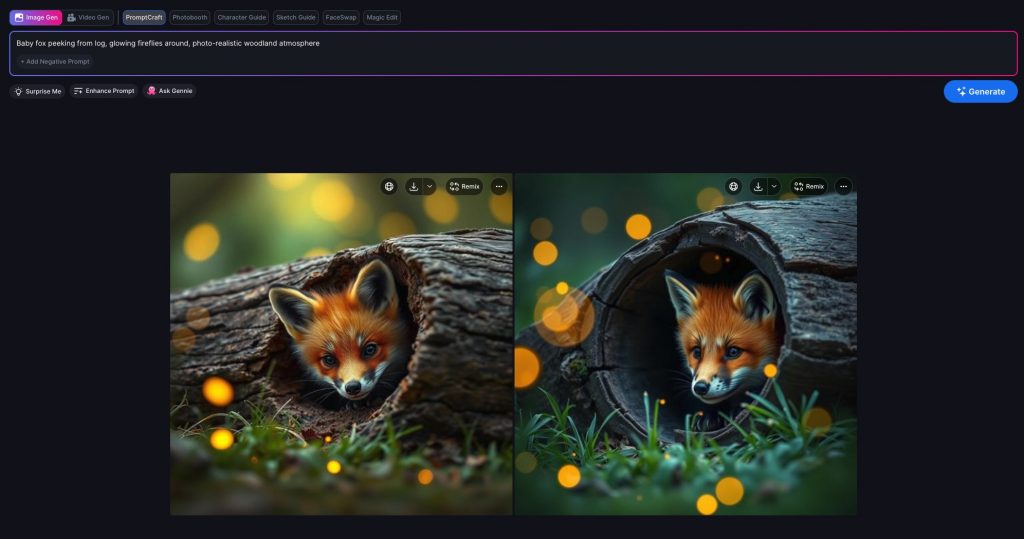
The generation results screen has also been overhauled – now, both creations are directly shown side-by-side. Users can view and compare the two creations without hopping back and forth between results. Additionally, users can continue to generate straight from the results screen – feature selection, prompt input, and generation settings are available even while viewing results. This makes it easier than ever to iteratively improve a prompt or output, or just to regenerate with a new seed.

See image results side-by-side on the new results screen.

In addition to the redesign, we’ve also added an in-app announcement system to allow for broader communication with users, as well as an in-app feedback form to ensure users are able to share their thoughts. We appreciate all user feedback, so please let us know how you’re feeling about the redesign or your experience with Gencraft in general!

The new in-app feedback form!

This update also includes a few smaller UI changes and bug fixes that should help the app run more smoothly.

Overall, we’re excited to see what everyone thinks about the design changes. Right now, only the web design has been refreshed, but updates to the mobile apps are coming as well! We’re also working behind the scenes on a couple larger updates, so be on the lookout for any upcoming announcements. Thanks for reading, and keep on creating!