Photobooth allows you to generate variations of yourself! You can use Gencraft to become whatever you want – the only limit is your imagination. In this tutorial, we’ll walk you through how to use this tool and show some examples of what you can create with it.
Generate yourself in a different setting
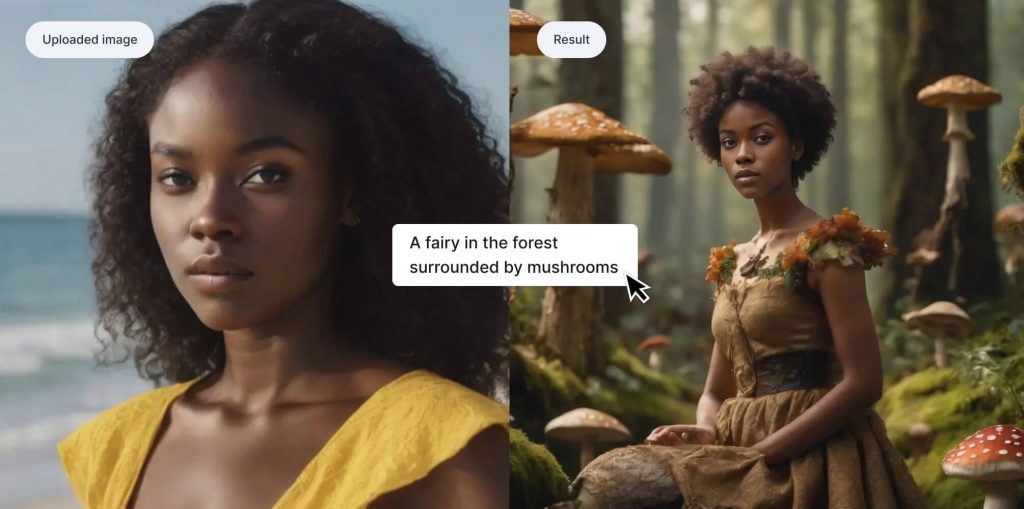
To begin, type in your prompt. This prompt should envision the final image you wish to be a part of. In this example, we’ll be using “A fairy in the forest surrounded by small woodland creatures and mushrooms.”
Note: Make sure to mention a person in the prompt — if you just say “the forest,” the model won’t put you in the image.
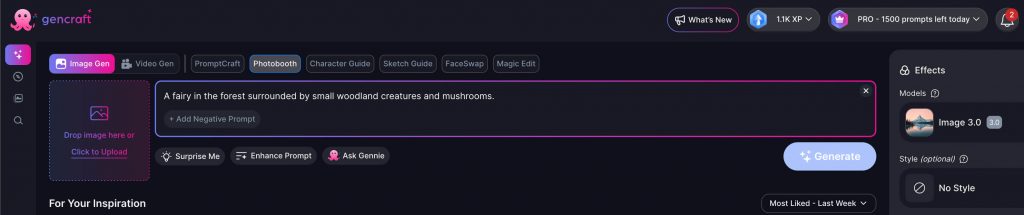
Click on Image Selection Section on the left of the Prompt Input to either upload your photo or select an image from your past uploads. We’ll be using the image below as our reference:
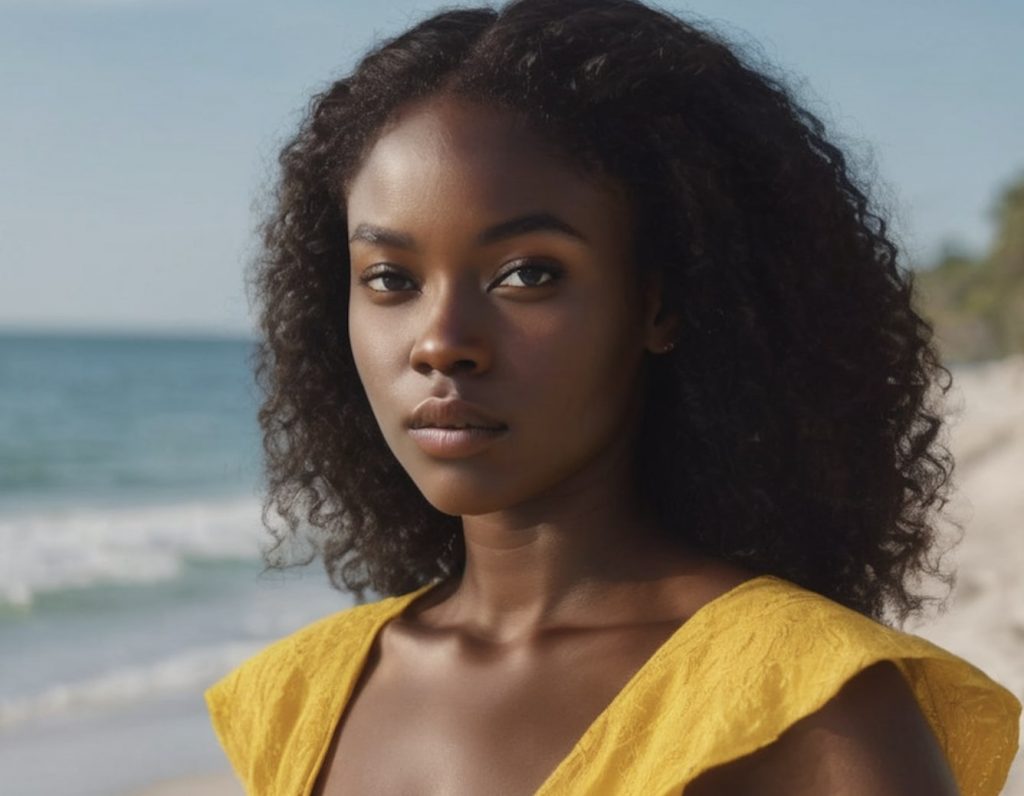
Once you have chosen your image just go ahead and click on the Generate button.
It’s that easy! Our final image is shown below, with the image we uploaded incorporated into the prompt.
Generate yourself in a different style
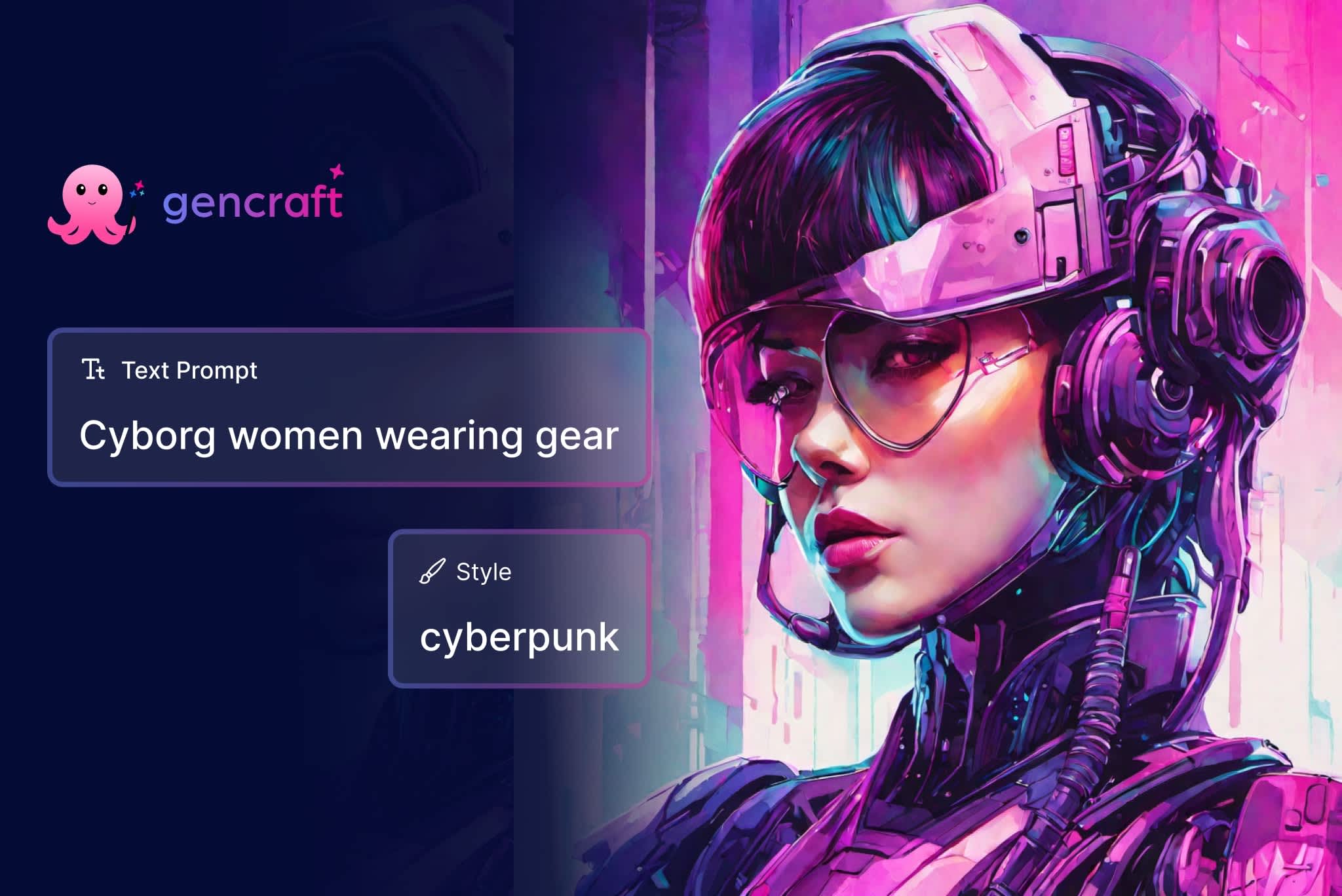
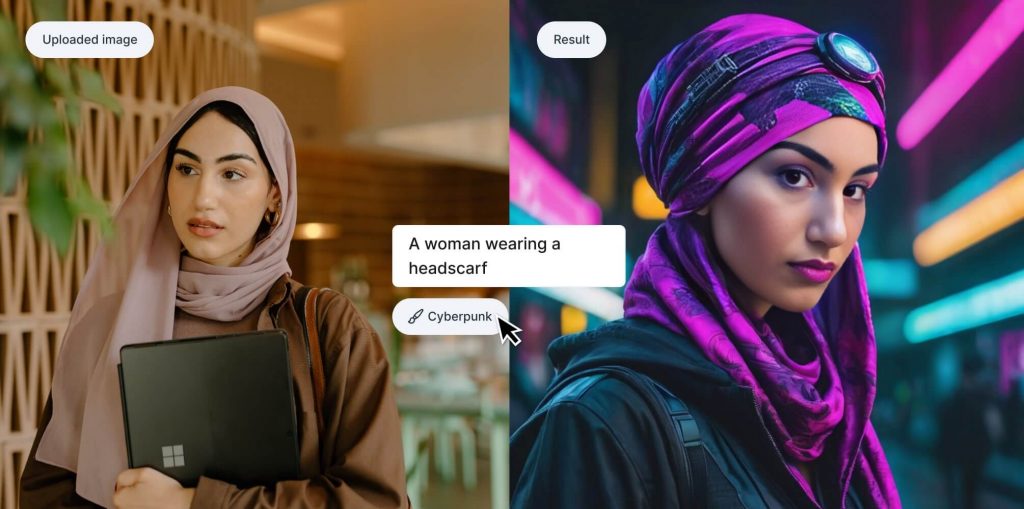
You can also transform images of yourself in exciting ways using Gencraft’s built-in Styles. You don’t need any sort of complicated prompt — simply enter a short sentence that includes a person, pick a style, and hit Generate! In the below example, we used the prompt “A woman wearing a headscarf” and selected “Cyberpunk” as our Style.
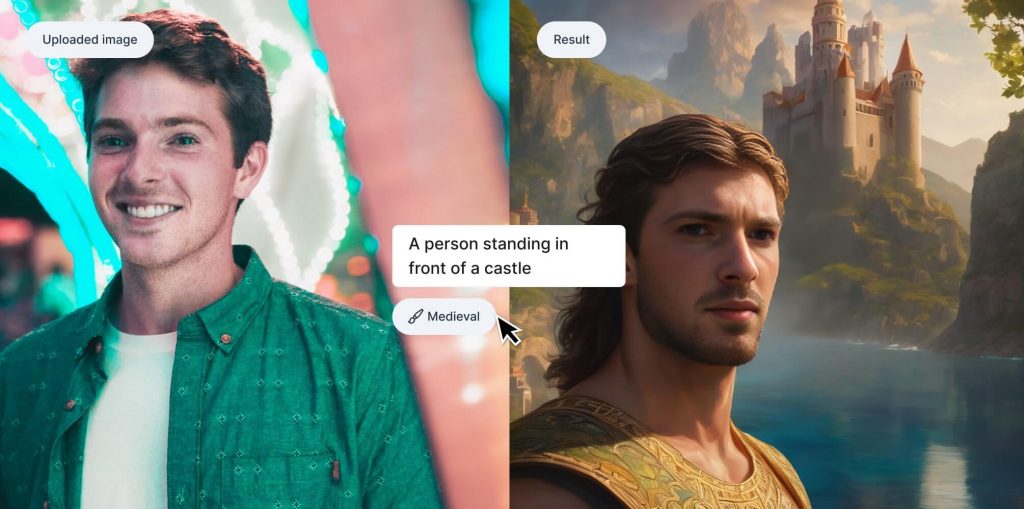
Here is an another example using the Medieval Style. Notice again how general the prompt is here – our preset styles will do the rest.
Of course, feel free to play around with Gencraft’s Advanced Settings such as model selection and negative prompts before you hit “Generate”.
We hope this tutorial was helpful. Check out our other step-by-step guides, and feel free to contact us at support@gencraft.com if you have any additional questions.
Join our Discord to share your art and meet other creators. https://discord.com/invite/gencraft